
Published: July 7, 2026 | Last updated: July 7, 2026
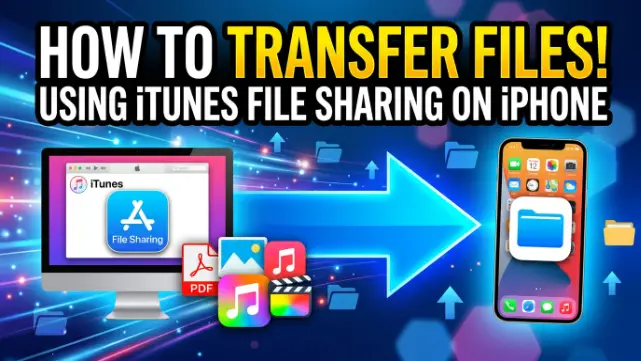
The iTunes File Sharing feature lets you copy files between your computer and specific apps on your iPhone or iPad using a USB cable (Apple Support, 2024). It works with apps that support file sharing Pages, Numbers, Keynote, GarageBand, and many third-party document and media apps (Apple Support, 2024).
When you connect your iPhone to your computer and open iTunes, you’ll see a list of compatible apps under the File Sharing section. From there, you can drag and drop files between your computer and your device (Apple Support, 2024). This is especially useful for transferring documents, PDFs, eBooks, and media files that you want to access within specific apps on your iPhone.
TL;DR
- iTunes File Sharing transfers files between your computer and iPhone using a USB cable — only works with apps that support the feature (Apple Support, 2024).
- On Windows 10 and 11, open iTunes, connect your iPhone, click the device icon, select File Sharing, choose an app, and drag files to the Documents list (Apple Support, 2024).
- If File Sharing doesn’t show any apps, your device has no apps that support file sharing — try installing a compatible app like Pages or a document reader (Apple Support, 2024).
- Alternatives include iCloud Drive, AirDrop (Mac to iPhone), third-party tools like EaseUS MobiMover, and wireless transfer apps like SHAREit (EaseUS, 2026; Gizmodo, 2026).
- On macOS Catalina and later, use Finder instead of iTunes for file sharing (Apple Support, 2024).
- iTunes for Windows is still available and supports File Sharing on Windows 10 and 11 (Windows Report, 2024).
What Is iTunes File Sharing and How Does It Work?
iTunes File Sharing is a feature built into iTunes that allows you to transfer files between your computer and apps on your iPhone or iPad (Apple Support, 2024). It works by providing a dedicated file transfer area for each app that supports the feature. When you connect your iPhone to your computer with a USB cable and open iTunes, you can see which apps on your device support file sharing (Apple Support, 2024).
Apple explains that only files for iPhone apps that support file sharing can be transferred using iTunes (Apple Support, 2024). Apps like Pages, Numbers, Keynote, GarageBand, and many document readers and media players are compatible. Once you select an app in the File Sharing section, you can see all the files currently stored in that app’s document folder on your iPhone. From there, you can drag and drop files from your computer to the app, or drag files from the app to your computer (Apple Support, 2024).
This is different from syncing, which transfers media like music and videos to the iPhone’s built-in apps. File Sharing is specifically for documents and files that you want to open and work with inside specific third-party apps.
How to Transfer Files Using iTunes File Sharing on Windows 10/11
Follow these step-by-step instructions to transfer files using iTunes File Sharing on a Windows PC (Apple Support, 2024; Apple Support, 2024).
Step 1: Connect your iPhone, iPad, or iPod touch to your computer using the USB cable that came with your device (Apple Support, 2024).
Step 2: Open iTunes on your PC. If you don’t have iTunes installed, download it from the Microsoft Store or the Apple website (Windows Report, 2024).
Step 3: In the iTunes window, click the Device button near the top left of the window — it looks like a small iPhone icon (Apple Support, 2024).
Step 4: Click File Sharing in the left sidebar (Apple Support, 2024).
Step 5: In the list on the left, select the app on your device that you want to transfer a file to or from (Apple Support, 2024). Only apps that support file sharing will appear in this list.
Step 6: To copy files from your computer to your iPhone: drag and drop files from a folder or window onto the Documents list. You can also click Add in the Documents list, find the file or files you want to copy from your computer, and then click Add (Apple Support, 2024).
Step 7: To copy files from your iPhone to your computer: drag and drop files from the Documents list to a folder or window on your computer. You can also select the file or files you want to copy and click Save, then choose where to save them on your computer (Apple Support, 2024).
Step 8: Once the transfer is complete, you can open the files on your iPhone using the app you selected (Apple Support, 2024).
How to Transfer Files Using File Sharing on Mac (macOS Catalina and Later)
On macOS Catalina (10.15) and later, Apple replaced iTunes with separate apps — Music, TV, and Finder. File Sharing is now handled through Finder (Apple Support, 2024).
Step 1: Connect your iPhone to your Mac using the USB cable.
Step 2: Open a Finder window. Your iPhone will appear in the sidebar under “Locations.”
Step 3: Click on your iPhone in the sidebar.
Step 4: Click the Files tab at the top of the Finder window.
Step 5: In the list of apps, select the app you want to transfer files to or from.
Step 6: Drag and drop files from your computer to the app’s document list, or drag files from the list to your computer (Apple Support, 2024).
How to Transfer Files from PC to iPhone Using a USB Cable Without iTunes
If you want to transfer files from your PC to your iPhone without using iTunes, several alternatives are available.
Option 1: EaseUS MobiMover. This is a free iPhone transfer software that lets you transfer photos, videos, music, and documents from PC to iPhone without needing iTunes. It supports both Windows and Mac and enables fast file transfer via USB without any network requirement (EaseUS, 2026).
Option 2: iCloud Drive. You can upload files to iCloud Drive from your PC and access them on your iPhone through the Files app. This works wirelessly and keeps your files synced across devices (Apple Support, 2024).
Option 3: Third-party apps. Apps like SHAREit allow you to transfer files wirelessly between your PC and iPhone without a USB cable. SHAREit is a cross-platform tool that works without internet access (Gizmodo, 2026).
Option 4: AirDrop (Mac to iPhone). If you have a Mac, AirDrop lets you wirelessly share files with your iPhone without cables (Apple Support, 2024).
How to Transfer Files from PC to iPhone Without Using USB Cable
Wireless file transfer methods have become increasingly popular. Here are the best options:
iCloud Drive: Upload files to iCloud Drive from your PC’s browser or iCloud for Windows app. The files will appear in the Files app on your iPhone. Apple notes that iCloud Drive lets you securely access all of your documents from your iPhone, iPad, iPod touch, Mac, or PC (Apple Support, 2024).
AirDrop (Mac to iPhone): If you have a Mac, AirDrop is the fastest wireless option. It works with photos, videos, websites, locations, and more with other nearby Apple devices (Apple Support, 2024).
SHAREit: This cross-platform tool lets you transfer files between Windows PC, Mac, Android, and iOS devices without internet access. It works quickly and without cables (Gizmodo, 2026).
WiFi Transfer Apps: Apps like “WiFi+Transfer” and “Air Share Wifi File Transfer” let you transfer files between your PC and iPhone without any USB cable or complex setup (App Store, 2026).
Why Is iTunes File Sharing Not Showing Any Apps?
One of the most common frustrations with iTunes File Sharing is opening the section and seeing no apps listed. Here’s why (Apple Support, 2024):
1. Your device has no file-sharing apps. Apple states: “If you don’t see a File Sharing section, your device has no file-sharing apps” (Apple Support, 2024). To fix this, install an app that supports file sharing, such as Pages, Numbers, Keynote, or a document reader.
2. The app developer hasn’t enabled file sharing. Not all apps support file sharing. The app’s developer must set the UIFileSharingEnabled key to YES in the app’s configuration (Apple Developer, 2026). If the app doesn’t support it, it won’t appear in the File Sharing list.
3. You’re using the wrong version of iTunes or Finder. On macOS Catalina and later, you need to use Finder instead of iTunes for File Sharing (Apple Support, 2024).
How to Download iTunes File Sharing for Windows 10 and 11
iTunes is still available for Windows 10 and 11 and continues to support File Sharing (Windows Report, 2024). There are two ways to get it:
Method 1: Microsoft Store. Open the Microsoft Store on your Windows 10 or 11 PC, search for “iTunes,” and click Install. This is the recommended method for most users.
Method 2: Apple website. Go to the Apple iTunes download page, click “Download iTunes for Windows now (64-bit),” and run the installer (Windows Report, 2024).
Once installed, open iTunes, connect your iPhone, and the File Sharing feature will be available under the device settings.
Comparison of File Transfer Methods
| Method | Cable Required | Internet Required | Speed | Best For |
|---|---|---|---|---|
| iTunes File Sharing | ✅ USB cable | ❌ No | Fast | Transferring documents to specific apps (Apple Support, 2024) |
| iCloud Drive | ❌ No | ✅ Yes | Moderate | Syncing documents across all devices (Apple Support, 2024) |
| AirDrop (Mac to iPhone) | ❌ No | ❌ No (Wi-Fi direct) | Fast | Quick transfers between Apple devices (Apple Support, 2024) |
| EaseUS MobiMover | ✅ USB cable | ❌ No | Fast | Transferring photos, videos, music without iTunes (EaseUS, 2026) |
| SHAREit | ❌ No | ❌ No | Fast | Cross-platform wireless transfers (Gizmodo, 2026) |
| Email Attachments | ❌ No | ✅ Yes | Slow | Small files, occasional transfers (Apple Support, 2024) |
Troubleshooting Table
| Problem | Cause | Fix |
|---|---|---|
| No apps appear in File Sharing | Your device has no file-sharing apps (Apple Support, 2024) | Install a compatible app like Pages, Numbers, or a document reader |
| File Sharing section not showing | Using wrong iTunes version or macOS version | On macOS Catalina+, use Finder instead (Apple Support, 2024) |
| Files don’t appear on iPhone after transfer | Transferred to wrong app or file type incompatible | Check the app’s user guide for supported file types (Apple Support, 2024) |
| iTunes doesn’t recognize iPhone | Driver issue or cable problem | Reinstall iTunes, try a different USB cable or port |
| Can’t find Device button in iTunes | iTunes window not showing sidebar | Click View > Show Sidebar or look near top left of iTunes window (Apple Support, 2024) |
| Shared files missing after app delete | Deleting app removes its shared files (Apple Support, 2024) | Copy files to your computer before deleting the app |
Frequently Asked Questions
How do I transfer files using iTunes File Sharing on iPhone?
Connect your iPhone to your computer with a USB cable, open iTunes, click the device icon, select File Sharing, choose an app, and drag files to the Documents list (Apple Support, 2024). You can transfer files in both directions.
How do I transfer files from PC to iPhone without iTunes?
You can use iCloud Drive, third-party tools like EaseUS MobiMover, or wireless transfer apps like SHAREit (EaseUS, 2026; Gizmodo, 2026). AirDrop is also available if you have a Mac.
How do I transfer files from PC to iPhone using a USB cable without iTunes?
Use third-party software like EaseUS MobiMover. It lets you transfer photos, videos, music, and documents from PC to iPhone via USB without needing iTunes (EaseUS, 2026).
Why is iTunes File Sharing not showing any apps?
Apple states that if you don’t see a File Sharing section, your device has no file-sharing apps (Apple Support, 2024). Install an app that supports file sharing, such as Pages or a document reader.
How do I download iTunes File Sharing for Windows 10?
iTunes File Sharing is built into iTunes. Download iTunes from the Microsoft Store or the Apple website. The feature is included and doesn’t require a separate download (Windows Report, 2024).
How do I download iTunes File Sharing for Windows 11?
The same process applies — download iTunes from the Microsoft Store or Apple’s website. iTunes is fully compatible with Windows 11 and supports File Sharing (Windows Report, 2024).
Can I transfer files from PC to iPhone wirelessly without using a USB cable?
Yes. Use iCloud Drive, AirDrop (if you have a Mac), or third-party apps like SHAREit and WiFi Transfer apps (Apple Support, 2024; Gizmodo, 2026).
What happens to shared files if I delete an app from my iPhone?
When you delete an app with shared files from your iOS device, you also delete those shared files from your device and your iCloud or iTunes backup (Apple Support, 2024). To avoid losing shared files, copy them to your computer first.
Key Takeaways
- iTunes File Sharing transfers files between your computer and iPhone using a USB cable — only works with apps that support the feature (Apple Support, 2024).
- On Windows 10 and 11, open iTunes, connect your iPhone, click the device icon, select File Sharing, choose an app, and drag files to the Documents list (Apple Support, 2024).
- If File Sharing doesn’t show any apps, your device has no apps that support file sharing — try installing a compatible app like Pages or a document reader (Apple Support, 2024).
- On macOS Catalina and later, use Finder instead of iTunes for file sharing (Apple Support, 2024).
- Alternatives include iCloud Drive, AirDrop (Mac to iPhone), third-party tools like EaseUS MobiMover, and wireless transfer apps like SHAREit (EaseUS, 2026; Gizmodo, 2026).
- iTunes for Windows is still available and fully supports File Sharing on Windows 10 and 11 (Windows Report, 2024).