
Published: July 1, 2026 | Last updated: July 1, 2026
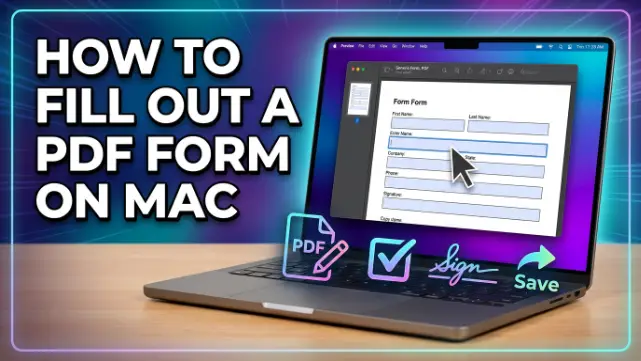
The fastest way to fill out a PDF form on a Mac is using the built-in Preview app — it’s free, requires no downloads, and handles most interactive forms perfectly. Preview lets you click directly into form fields, type your text, check boxes, and even add your signature using your trackpad or camera (Apple Support, 2026). For non-interactive (flat) PDFs that don’t have fillable fields, you can use Preview’s annotation tools to add text boxes, or try online PDF form fillers that work right in your browser. This guide covers every method, from the simplest free options to advanced tools for scanned documents and certificate-based signatures.
TL;DR
- Preview is Apple’s free built-in PDF tool on Mac — click any form field to type, and use the Markup toolbar for signatures and annotations (Apple Support, 2026).
- For non-interactive (flat) PDFs, use Preview’s “Add Text” tool or a browser-based PDF Form Filler to place text boxes over the document (Smallpdf, 2026).
- Create a handwritten signature in Preview using your trackpad, built-in camera, or iPhone/iPad — saved signatures can be reused across documents (Apple Support, 2026).
- Online PDF editors like Smallpdf and Adobe Acrobat Online let you fill forms directly in your browser without installing anything (Smallpdf, 2026; EaseUS, 2026).
- For certificate-based digital signatures, use Adobe Acrobat Reader’s “Use a Certificate” tool under All Tools (TechTarget, 2026).
- You can also fill out PDF forms on iPhone using the Preview app or Adobe Acrobat’s Fill & Sign tool (Apple Support, 2026).
Understanding Interactive vs. Non-Interactive PDF Forms
Before you start filling, it helps to know what kind of PDF you’re dealing with. Interactive PDF forms have designated fields — text boxes, checkboxes, and dropdown menus — that you can click into and type directly. Non-interactive (flat) PDFs look like regular documents but behave like images; clicking on them does nothing because there are no fields underneath (Smallpdf, 2026). Flat PDFs are common with scanned documents, older PDFs, and any PDF created in Word or by printing to PDF (Smallpdf, 2026).
If you click on a field and your cursor appears, you have an interactive form. If nothing happens, you have a flat PDF and need to use annotation tools or an online form filler that adds text boxes on top of the page (Smallpdf, 2026).
How to Fill Out a PDF Form on Mac Using Preview
Preview is Apple’s built-in PDF viewer and editor. It comes free with every Mac and handles most PDF forms without any extra software (Apple Support, 2026).
Step 1: Locate your PDF file in Finder. Double-click it to open in Preview. If it opens in another app, right-click the file, select “Open With,” and choose “Preview” (MefMobile, 2026).
Step 2: Click on any form field to start typing. If the PDF is interactive, you’ll see highlighted regions where you can enter text. Tab through the form to move between fields in order (Apple Support, 2026).
Step 3: Click checkboxes to mark them, and select options from dropdown menus by clicking and choosing your answer (MefMobile, 2026).
Step 4: If the PDF is flat (non-interactive) and won’t let you type directly, click the Markup Toolbar button (the pencil icon), then click the Text tool (a “T” in a box). Click anywhere on the page to add a text box, then type your answer. Drag the text box to position it over the form field (Apple Support, 2026; EaseUS, 2026).
Step 5: Save your changes by going to File > Save or File > Export to create a new version of the PDF (Apple Support, 2026).
How to Create a Signature on Mac Using Preview
Preview’s signature tool is one of the most useful features for filling out forms. You can create a signature once and reuse it across any PDF.
Step 1: Open your PDF in Preview and click the Markup Toolbar button (pencil icon) (Apple Support, 2026).
Step 2: Click the Signature icon (a cursive “S” with a line) and select Create Signature (Apple Support, 2026).
Step 3: Choose how to create your signature:
- Trackpad: Click Trackpad, sign your name with your finger on the trackpad, press any key, and click Done (CleanMyMac, 2026).
- Camera: Click Camera. Hold your signature on white paper facing the camera so it’s level with the blue line. When it appears, click Done (Apple Support, 2026).
- iPhone or iPad: Click Select Device, choose your nearby device, sign with your finger or Apple Pencil, and tap Done (Apple Support, 2026).
Step 4: Click the saved signature to place it on your PDF. Drag the corners to resize it without losing quality (CleanMyMac, 2026).
Note: If you use iCloud Drive, your signatures sync across all your Apple devices (Apple Support, 2026).
How to Fill Out a PDF Form Using Adobe Acrobat Reader
Adobe Acrobat Reader is a free alternative that offers more robust features for filling out forms (MefMobile, 2026).
Step 1: Download and install Adobe Acrobat Reader from Adobe’s official website (MefMobile, 2026).
Step 2: Launch Acrobat Reader and go to File > Open to select your PDF form (MefMobile, 2026).
Step 3: On the right pane, select the Fill & Sign tool (MefMobile, 2026).
Step 4: Click on any text field and start typing. Use the toolbar to add checkmarks, dates, and signatures (MefMobile, 2026).
Step 5: Save your completed form by going to File > Save.
How to Sign a PDF with a Certificate on Mac
For documents that require cryptographic verification — like legal contracts or government forms — you need a certificate-based digital signature. This is different from a handwritten-style e-signature. A digital signature uses a certificate that ties your identity to the PDF and flags any changes made after signing (CleanMyMac, 2026).
Using Adobe Acrobat Reader:
- Open your PDF in Adobe Acrobat Reader (TechTarget, 2026).
- Click All Tools in the toolbar (CleanMyMac, 2026).
- Select Use a Certificate > Digitally Sign (TechTarget, 2026).
- Draw the signature field in the PDF and sign with your digital ID or certificate (TechTarget, 2026).
Note: Preview does not support certificate-based digital signatures. For this, you need Adobe Acrobat or a dedicated certificate-signing tool (TechTarget, 2026).
How to Fill In a PDF Form on iPhone
You can also fill out PDF forms on your iPhone using the Preview app or Adobe Acrobat.
Using Preview on iPhone:
- Open the PDF in the Files app or Mail — it will open in Preview by default (Apple Support, 2026).
- Tap a field and type your information (Apple Support, 2026).
- Tap the Markup button (pencil icon) to add a signature or text box (Apple Support, 2026).
- Tap Done and save or share the completed form (Apple Support, 2026).
Using Adobe Acrobat on iPhone:
- Open the PDF in Adobe Acrobat (Adobe, 2026).
- Tap Fill & Sign in the toolbar (Adobe, 2026).
- Tap on any text field and start typing. Tap Sign Yourself to draw or upload a signature (Adobe, 2026).
How to Write on PDF on Mac Free
If you just need to add text to a PDF without filling a form, Preview’s “Add Text” tool is the simplest free option.
Using Preview:
- Open the PDF in Preview.
- Click the Markup Toolbar button (pencil icon) (EaseUS, 2026).
- Click the Text tool (a “T” in a box) (EaseUS, 2026).
- Click anywhere on the page to add a text box, then type your text (EaseUS, 2026).
- Drag the text box to position it, and use the handles to resize it (EaseUS, 2026).
- Save your changes with File > Save (EaseUS, 2026).
Online alternatives: Smallpdf’s PDF Form Filler and Adobe Acrobat Online let you add text to PDFs directly in your browser without installing anything (Smallpdf, 2026; EaseUS, 2026).
Comparison of Methods
| Method | Cost | Interactive Forms | Flat PDFs | Signatures | Certificate Signing |
|---|---|---|---|---|---|
| Preview | Free (built-in) | ✅ Yes | ✅ Yes (Add Text) | ✅ Yes (trackpad/camera) | ❌ No |
| Adobe Acrobat Reader | Free | ✅ Yes | ✅ Yes | ✅ Yes | ✅ Yes (with certificate) |
| Smallpdf Online | Free | ✅ Yes | ✅ Yes | ✅ Yes | ❌ No |
| Adobe Acrobat Online | Free | ✅ Yes | ✅ Yes | ✅ Yes | ❌ No |
| Third-party apps (DocuSign, etc.) | Varies | ✅ Yes | ✅ Yes | ✅ Yes | ✅ Yes |
Troubleshooting Table
| Problem | Cause | Fix |
|---|---|---|
| Can’t type in PDF form | PDF is flat/non-interactive | Use Preview’s “Add Text” tool or an online PDF Form Filler (Smallpdf, 2026) |
| PDF opens in wrong app | Default app set to something else | Right-click the file, select “Open With,” and choose Preview (MefMobile, 2026) |
| Signature looks jagged | Drawing too fast on trackpad | Write slowly and use a lighter touch (CleanMyMac, 2026) |
| Can’t find Markup toolbar | Toolbar hidden | Click the pencil icon in the Preview toolbar to show it (Apple Support, 2026) |
| Certificate signing not available | Preview doesn’t support it | Use Adobe Acrobat Reader with the “Use a Certificate” tool (TechTarget, 2026) |
| Saved signature not showing | iCloud sync issue | Check iCloud Drive is enabled in System Settings > Apple ID > iCloud (Apple Support, 2026) |
Frequently Asked Questions
How do I fill out a PDF form on Mac for free?
Use Preview, which comes free with every Mac. Open the PDF in Preview, click on any form field, and type your text. If the PDF doesn’t have fillable fields, use the Markup toolbar’s “Add Text” tool to place text boxes on the page (Apple Support, 2026).
How do I create a handwritten signature on Mac?
Open a PDF in Preview, click the Markup toolbar (pencil icon), click the Signature icon, and select “Create Signature.” You can sign using your trackpad, built-in camera, or iPhone/iPad (Apple Support, 2026). Saved signatures can be reused across any PDF (CleanMyMac, 2026).
How do I sign a PDF with a certificate on Mac?
Preview doesn’t support certificate-based digital signatures. Use Adobe Acrobat Reader: open your PDF, click All Tools, select “Use a Certificate,” then “Digitally Sign” (TechTarget, 2026). You’ll need a digital ID or certificate to complete the process (CleanMyMac, 2026).
How do I fill in a PDF form on iPhone?
Open the PDF in the Files app or Mail, tap a field, and type your text. Use the Markup button (pencil icon) to add a signature or text box. Alternatively, use Adobe Acrobat’s Fill & Sign tool for more features (Apple Support, 2026; Adobe, 2026).
What’s the difference between an e-signature and a digital signature?
An e-signature is a visible mark (drawn, typed, or scanned) that shows intent. Preview creates e-signatures. A digital signature is cryptographic — it uses a certificate that ties your identity to the PDF and flags any changes made after signing. Digital signatures require Adobe Acrobat or similar tools (CleanMyMac, 2026).
Can I use Preview to fill out non-interactive PDF forms?
Yes. For flat PDFs without fillable fields, open the PDF in Preview, click the Markup toolbar, and use the “Add Text” tool to place text boxes over the form fields. You can also add checkmarks, signatures, and other annotations (Apple Support, 2026; Smallpdf, 2026).
How do I create a signature on MacBook Air?
Open Preview on your MacBook Air, click the Markup toolbar, click the Signature icon, and select “Create Signature.” Choose “Trackpad” and sign with your finger on the trackpad, or choose “Camera” and hold a signed piece of paper to the camera (Apple Support, 2026).
Is there a completely free PDF editor for Mac?
Yes — Preview is completely free and built into macOS. For more advanced features, PDFgear is a free PDF editor available on the App Store with full annotation, conversion, and editing capabilities (SlashGear, 2025).
Key Takeaways
- Preview is Apple’s free built-in PDF tool on Mac — click any form field to type, and use the Markup toolbar for signatures and annotations (Apple Support, 2026).
- For non-interactive (flat) PDFs, use Preview’s “Add Text” tool or a browser-based PDF Form Filler to place text boxes over the document (Smallpdf, 2026).
- Create a handwritten signature in Preview using your trackpad, built-in camera, or iPhone/iPad — saved signatures can be reused across documents (Apple Support, 2026).
- Online PDF editors like Smallpdf and Adobe Acrobat Online let you fill forms directly in your browser without installing anything (Smallpdf, 2026; EaseUS, 2026).
- For certificate-based digital signatures, use Adobe Acrobat Reader’s “Use a Certificate” tool under All Tools (TechTarget, 2026).
- You can also fill out PDF forms on iPhone using the Preview app or Adobe Acrobat’s Fill & Sign tool (Apple Support, 2026; Adobe, 2026).