
[Published: June 15, 2026 | Last updated: June 15, 2026] | 10 min read
TL;DR
- A wireless local area network (WLAN) is a network that connects devices using Wi-Fi radio signals within a defined physical area – a home, office, school, or campus – without physical cables.
- WLANs operate under the IEEE 802.11 family of standards, with Wi-Fi 7 (802.11be) being the current generation, capable of theoretical speeds up to 46 Gbps (Wi-Fi Alliance and IEEE, June 2025).
- The global WLAN market was valued at USD 1.996 billion in 2025 and is projected to reach USD 4.04 billion by 2032, growing at a CAGR of 10.6% (Reanin Market Research, March 2026).
- Over 65% of organizations have adopted wireless networking solutions for day-to-day operations, driving demand for enterprise-grade WLAN infrastructure (Reanin Market Research, March 2026).
- WPA3 is the current wireless security standard, mandatory for all Wi-Fi certified devices since July 2020 (Wi-Fi Alliance, 2020).
What Is a Wireless Local Area Network (WLAN)?
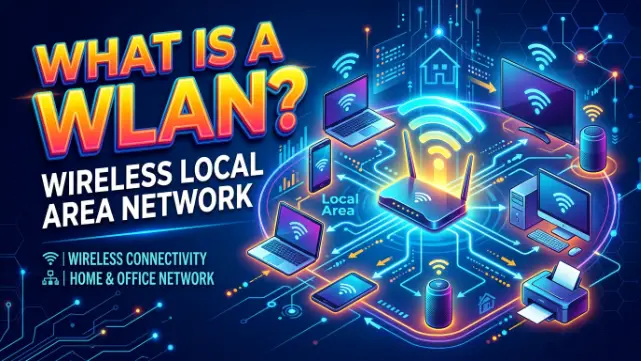
A wireless local area network (WLAN) is a network that links devices to each other and to the internet using radio signals – specifically Wi-Fi – instead of physical Ethernet cables, within a limited geographic area like a building, floor, or campus.
The “local” in WLAN is the important word. A WLAN covers a defined space: your apartment, your company’s office, your school’s library. It doesn’t span cities or countries. It’s the layer of connectivity between your devices and the router that connects outward to the broader internet.
Every device on a WLAN – laptop, phone, smart TV, printer, IoT sensor – communicates through wireless access points (APs), which are the hardware nodes that broadcast and receive Wi-Fi signals. In a home setup, that’s typically your router. In a large enterprise deployment, it’s dozens or hundreds of access points coordinated through a central controller.
The IEEE 802.11 standard governs how WLANs work. First ratified in 1997, the standard has evolved through multiple generations – 802.11a, 802.11b, 802.11g, 802.11n (Wi-Fi 4), 802.11ac (Wi-Fi 5), 802.11ax (Wi-Fi 6/6E), and the current 802.11be (Wi-Fi 7) – each delivering faster speeds, better efficiency, and stronger security than the last (IEEE Standards Association, 2024).
How a WLAN Works: The Technical Basics
A WLAN works by transmitting data as radio frequency (RF) signals between devices and access points, which then route that data to its destination – either another local device or through the internet gateway.
Here’s the sequence on every connection:
When your laptop opens a web page, it sends a data request as an RF signal on either the 2.4 GHz, 5 GHz, or 6 GHz frequency band. The nearest wireless access point receives that signal, converts it to a wired data packet, and routes it through the network to the internet or local server. The response comes back the same way in reverse, in milliseconds.
Three frequency bands are available in modern WLANs:
| Band | Range | Speed | Best Use Case |
|---|---|---|---|
| 2.4 GHz | Long range, penetrates walls well | Slower | IoT devices, older hardware |
| 5 GHz | Medium range | Fast | Laptops, streaming |
| 6 GHz | Short range | Fastest | Wi-Fi 6E and Wi-Fi 7 only |
The 2.4 GHz band reaches further but gets congested quickly in dense environments because most legacy devices use it. The 5 GHz and 6 GHz bands carry more data but don’t penetrate walls as well. Modern routers and enterprise access points handle all three simultaneously – a feature called tri-band operation – and direct devices to the most appropriate band automatically.
The RAG chunk rule applies here: each section covers one complete idea. WLAN operation starts with device authentication (verifying the device has the right credentials to join the network), then association (the device formally joins the access point), then data exchange over an encrypted channel.
WLAN vs LAN vs WAN: What’s the Difference?
A WLAN is a wireless version of a LAN. A WAN is a completely different scale of network. These three terms confuse people constantly – here’s the clean distinction.
A LAN (Local Area Network) connects devices within a limited area using physical cables – Ethernet cables running between computers, switches, and routers. A WLAN does the same thing without the cables, using Wi-Fi radio signals instead. In practice, most modern LANs include both wired and wireless components, making the WLAN a subset of the broader LAN infrastructure.
A WAN (Wide Area Network) operates at a different scale entirely. WANs connect multiple LANs across large geographic distances – cities, countries, or continents. The internet is the largest WAN in existence. Your office WLAN connects to the internet through a WAN link provided by your ISP (AWS, 2025).
The practical difference in 2026:
| Network Type | Coverage Area | Connection Type | Managed By |
|---|---|---|---|
| WLAN | Single building or campus | Wi-Fi (wireless) | Building IT or home user |
| LAN | Single building or campus | Ethernet (wired) | Building IT |
| WAN | Multiple cities or countries | ISP circuits, fiber, cellular | ISP or telco |
The key takeaway: a WAN is what connects your WLAN to the rest of the world. Without a WAN connection, your WLAN still works for local file sharing and printing – but nothing reaches the internet.
Types of WLAN: Infrastructure Mode vs Ad Hoc Mode
There are two fundamental WLAN configurations. Almost every network you’ve ever used runs in infrastructure mode.
Infrastructure mode is the standard setup. Devices connect to a central access point, which handles all traffic routing. The access point is the hub; everything else is a spoke. Your home Wi-Fi runs in infrastructure mode. Enterprise office networks run in infrastructure mode. Coffee shop Wi-Fi runs in infrastructure mode. It’s the default because it’s the most manageable and scalable.
Ad hoc mode (also called peer-to-peer or IBSS mode) lets devices connect directly to each other without any access point in the middle. Two laptops sharing files directly over Wi-Fi is an ad hoc connection. This is useful for temporary setups – a field team sharing data at a site with no infrastructure, for instance. But ad hoc mode has no central point to enforce security policies or manage bandwidth, so it’s generally avoided in enterprise environments.
A third configuration worth knowing: mesh networks. Mesh is technically infrastructure mode, but instead of all devices connecting to one central access point, multiple access points connect to each other and distribute coverage across a large area. Mesh networks are standard in modern home Wi-Fi systems (Google Nest, Eero, and similar products all use mesh architecture) and in enterprise deployments across large campuses or warehouses.
Wi-Fi Standards: From 802.11b to Wi-Fi 7 in 2026
Wi-Fi 7, formally ratified by the IEEE and Wi-Fi Alliance in June 2025, is the current WLAN standard. It changes WLAN performance more significantly than any previous generation.
Wi-Fi 7 (IEEE 802.11be) delivers theoretical maximum throughput of 46 Gbps – roughly 4.8 times faster than Wi-Fi 6E’s 9.6 Gbps theoretical maximum. Under real-world conditions, expect 3-5 Gbps average on Wi-Fi 7 versus 1.2-2 Gbps on Wi-Fi 6E (Jazz Cyber Shield Research, April 2026).
The three technical advances that drive that improvement:
Multi-Link Operation (MLO): Wi-Fi 7 devices can simultaneously connect across the 2.4 GHz, 5 GHz, and 6 GHz bands at once – not switching between them, but bonding all three together. This eliminates the dropped connection problem when one band gets congested. For video calls, cloud gaming, and real-time data transfer, MLO is the single biggest practical improvement.
320 MHz channels: Wi-Fi 6E doubled channel width to 160 MHz. Wi-Fi 7 doubles it again to 320 MHz. Wider channels carry more data simultaneously, directly translating to faster speeds in dense environments.
4096-QAM modulation: Wi-Fi 7 encodes more data per signal cycle than previous generations, improving efficiency in environments where signal quality is high.
Enterprise and industrial devices are completing Wi-Fi 7 adoption through late 2025 and into 2026, following the consumer hardware rollout that began in early 2024 (Ezurio, 2025).
A quick reference across generations:
| Wi-Fi Generation | IEEE Standard | Max Theoretical Speed | Key Improvement |
|---|---|---|---|
| Wi-Fi 4 | 802.11n | 600 Mbps | MIMO introduced |
| Wi-Fi 5 | 802.11ac | 3.5 Gbps | 5 GHz optimization |
| Wi-Fi 6 | 802.11ax | 9.6 Gbps | OFDMA, better density |
| Wi-Fi 6E | 802.11ax | 9.6 Gbps | Added 6 GHz band |
| Wi-Fi 7 | 802.11be | 46 Gbps | MLO, 320 MHz channels |
WLAN Security: Protocols, Threats, and Best Practices in 2026
WPA3 is the required security protocol for all Wi-Fi certified devices as of July 2020, and the minimum standard for any network deployed in 2026.
WPA3 replaced WPA2 with three core improvements. First, it uses Simultaneous Authentication of Equals (SAE) instead of the Pre-Shared Key (PSK) handshake that WPA2 relied on. SAE is resistant to offline dictionary attacks – a major vulnerability in WPA2 that allowed attackers to capture a handshake and crack it at leisure. Second, WPA3 provides forward secrecy, meaning past sessions can’t be decrypted even if the current password is later compromised. Third, WPA3 encrypts open networks through Opportunistic Wireless Encryption (OWE), protecting users even on public Wi-Fi without a password (TechTarget, 2025).
That said, WPA3 is not without flaws. Known “Dragonblood” vulnerabilities include downgrade attacks – where an attacker forces a connection to revert to WPA2 – and side-channel attacks that can enable offline password cracking under certain conditions. Vendors addressed most of these through software updates, but the point is worth stating plainly: no protocol alone is sufficient (Payatu Security Research, August 2025).
NIST’s guidelines for securing WLANs recommend a layered approach:
- Deploy WPA3 on all access points as the baseline.
- Segment the network using VLANs – guest traffic, employee devices, and IoT sensors should not share the same logical network segment.
- Monitor the wireless environment continuously for rogue access points and anomalous traffic patterns.
- Apply patches to access point firmware as soon as they’re available.
- Enforce certificate-based authentication for enterprise networks (WPA3-Enterprise with 802.1X) rather than shared passwords (NIST SP 800-153, 2025).
One scenario that catches organizations off guard: Evil Twin attacks. An attacker sets up a rogue access point broadcasting the same SSID as a legitimate network. Devices that have previously connected join automatically, and all traffic flows through the attacker’s equipment. WPA3 reduces this risk but doesn’t eliminate it. Certificate-based authentication and continuous AP monitoring are the correct mitigations.
How to Set Up a WLAN: A Step-by-Step Guide
Setting up a functional WLAN takes most home users under 30 minutes and most small businesses under a day with the right hardware.
Step 1 – Choose your hardware. For homes: a dual-band or tri-band router with Wi-Fi 6 or Wi-Fi 7 support handles everything under one roof. For offices with 20+ users: deploy enterprise-grade access points from vendors like Aruba (HPE), Cisco Meraki, or Ubiquiti UniFi, managed through a central controller.
Step 2 – Position access points strategically. A single access point covers roughly 30-50 meters in open space. Walls, floors, and interference from neighboring networks reduce that range. In multi-room offices, plan for at least one access point per 100-150 square meters of usable space, with placement near ceilings for maximum coverage angle.
Step 3 – Configure your SSID and security. Set a network name (SSID) that doesn’t reveal your organization name or location. Enable WPA3, or WPA2/WPA3 transition mode if older devices need to connect. Use a strong, unique password of at least 16 characters.
Step 4 – Segment your network. Create at least two separate networks: one for primary devices and one for guests or IoT hardware. This is done through VLAN tagging on managed switches and separate SSID broadcast on the access point.
Step 5 – Test coverage before finalizing. Walk the coverage area with a device running a Wi-Fi analyzer app (NetSpot or Wi-Fi Analyzer on Android both work well). Identify dead zones before the hardware is permanently mounted.
Step 6 – Document and monitor. Record the IP addressing scheme, VLAN configuration, and access point placement. Set up firmware update alerts. Review connected device logs monthly. This part is boring – but a network you’ve never audited is a network you don’t actually control.
Real-World WLAN Applications by Environment
WLAN deployment looks different depending on the environment. Here’s what each looks like in practice.
Home networks: A single Wi-Fi 6 or Wi-Fi 7 router or a two-to-three node mesh system covers most homes. The primary challenges are dead zones in large floor plans and congestion from smart home devices that all compete on 2.4 GHz. A tri-band router with band steering solves both problems.
Enterprise offices: Over 62% of enterprises have integrated advanced WLAN systems to support mobile workforces and IoT devices (Reanin Market Research, April 2026). Enterprise deployments use centrally managed access points, 802.1X certificate authentication, and dedicated IoT VLANs that isolate devices like security cameras and building sensors from user traffic.
Healthcare: Hospitals use WLANs for patient monitoring systems, infusion pump connectivity, real-time asset tracking, and physician mobile access to electronic health records. This environment requires deterministic latency – a dropped Wi-Fi connection on a cardiac monitor is not the same as a dropped Netflix stream. Healthcare WLANs use dedicated access points with QoS (Quality of Service) prioritization for medical device traffic.
Warehouses and manufacturing: Industrial WLANs support barcode scanners, forklift terminals, and real-time inventory systems. The challenge is metal shelving, moving equipment, and large open spaces that create RF reflection and dead zones. Industrial access points with external antenna configurations handle this. The global industrial WLAN market is forecast to reach USD 2.44 billion by 2030, growing at 6% annually (The Business Research Company, 2026).
Education: Universities and schools deploy WLANs that must simultaneously support hundreds or thousands of devices per building. Wi-Fi 6 and Wi-Fi 7’s OFDMA and MLO features were specifically engineered for these high-density environments, where legacy Wi-Fi 5 access points created severe performance degradation during peak usage.
Mini Case Study: Enterprise WLAN Upgrade Delivering Measurable Gains
A mid-sized logistics company in a dense urban environment upgraded its warehouse WLAN from Wi-Fi 5 access points to a Wi-Fi 6 mesh deployment across two facilities totaling approximately 8,000 square meters. Before the upgrade, inventory scanners dropped connections an average of 12 times per shift during peak activity periods, causing operators to manually re-scan items and slowing throughput.
After deploying 28 Wi-Fi 6 access points configured with dedicated IoT SSIDs and QoS prioritization for scanner traffic, connection drops fell to fewer than two per shift within the first month. The warehouse manager reported a 14% improvement in daily pick-pack throughput without any change to staffing or processes. The WLAN infrastructure was the only variable.
This type of result is not unusual. Poorly performing wireless networks create invisible friction across operations that doesn’t show up as “network problem” on incident reports – it shows up as slower processes, frustrated staff, and unexplained throughput gaps.
Common WLAN Problems and How to Fix Them
Most WLAN issues come from the same handful of causes.
| Problem | Likely Cause | Fix |
|---|---|---|
| Slow speeds despite fast internet plan | 2.4 GHz congestion or too many devices on one AP | Enable band steering; add a second access point |
| Dead zones in certain rooms | Insufficient AP coverage or thick wall interference | Add a mesh node or wired AP in the affected area |
| Devices connecting but not accessing internet | DHCP server issue or DNS misconfiguration | Restart router; check DHCP lease pool size |
| Intermittent drops during video calls | Channel interference from neighboring networks | Use Wi-Fi analyzer to select a less congested channel |
| Guest devices accessing internal resources | No network segmentation | Set up a separate guest VLAN and SSID |
| Slow speeds near AP but fast far away | AP transmit power too high causing self-interference | Reduce AP transmit power by 20-30% |
The last one surprises most people. Higher transmit power doesn’t always mean better performance – access points can interfere with each other when their power is set too high, creating overlapping coverage areas where devices receive conflicting signals simultaneously.
Frequently Asked Questions About WLANs
What is a wireless local area network (WLAN)?
A wireless local area network (WLAN) is a network that connects devices to each other and to the internet using Wi-Fi radio signals within a defined area, such as a building, floor, or campus. It operates under the IEEE 802.11 family of standards and is the technology behind every home and office Wi-Fi network.
What is the difference between a WLAN and Wi-Fi?
Wi-Fi is a marketing term created by the Wi-Fi Alliance to refer to wireless networking products that meet IEEE 802.11 standards. WLAN is the technical term for the network those products create. In practical use, the terms are often interchangeable, but WLAN is the correct technical designation and Wi-Fi refers specifically to the certified technology used to build it.
What are the main security protocols used in WLANs?
The current security standards for WLANs are WPA3 (Wi-Fi Protected Access 3) for personal and enterprise networks, ratified in 2018 and required for all Wi-Fi certified devices since July 2020. WPA2 is still widely deployed in legacy environments but is being phased out. WEP and WPA (original) are obsolete and should not be used in any active network.
What is the range of a typical WLAN?
A standard indoor Wi-Fi access point covers roughly 30-50 meters in open space. Walls, floors, and physical obstructions reduce this range. Outdoor Wi-Fi access points extend coverage to 100-300 meters under ideal conditions. Mesh networks extend total WLAN coverage across larger areas by linking multiple access points that relay signals between themselves.
How is a WLAN different from a WAN?
A WLAN is a wireless network within a limited physical area – a building or campus – managed by the building owner or IT team. A WAN (Wide Area Network) connects multiple LANs across large geographic distances and is typically managed by an internet service provider. Your home WLAN connects to the internet through a WAN link provided by your ISP.
What is Wi-Fi 7 and why does it matter for WLANs?
Wi-Fi 7, formally designated IEEE 802.11be, is the current Wi-Fi standard ratified by the IEEE and Wi-Fi Alliance in June 2025. It delivers theoretical speeds up to 46 Gbps and introduces Multi-Link Operation (MLO), which lets devices connect across all three Wi-Fi bands simultaneously instead of switching between them. For enterprise WLANs in particular, Wi-Fi 7 solves the connection stability and congestion problems that affected previous generations in high-density environments.
How many devices can a WLAN support?
This depends on the access point hardware and network design. Consumer routers typically support 20-50 connected devices reliably before performance degrades. Enterprise access points running Wi-Fi 6 or Wi-Fi 7 can handle 500-1,000+ client associations per AP in high-density deployments. The practical limit is bandwidth per device, not raw connection count – a network can have 500 devices connected but perform poorly if each device consumes significant bandwidth simultaneously.
Key Takeaways
- A WLAN connects devices wirelessly using Wi-Fi within a defined area – it’s the technology behind every home and business wireless network.
- The IEEE 802.11 standard governs WLANs. Wi-Fi 7 (802.11be), ratified in June 2025, is the current generation with up to 46 Gbps theoretical throughput and Multi-Link Operation across all three bands.
- WPA3 is the required security standard for all Wi-Fi certified devices since 2020 – deploy it as the baseline on every network, alongside VLAN segmentation and continuous monitoring.
- The global WLAN market is projected to grow from USD 1.996 billion in 2025 to USD 4.04 billion by 2032 at a 10.6% CAGR, driven by enterprise adoption, IoT expansion, and hybrid work requirements.
- Most WLAN performance problems – slow speeds, dead zones, intermittent drops – have known, fixable causes. Start with channel selection, AP placement, and band steering before assuming a hardware problem.