
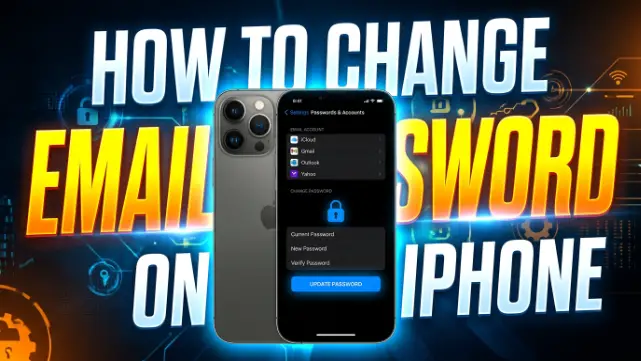
Published: June 30, 2026 | Last updated: June 30, 2026
TL;DR
- Your iPhone stores your email password but cannot create a new one — you must change it with your provider first (TechBloat, 2026).
- On iOS 16 and newer, go to Settings > Mail > Accounts, select your account, and update the password field (Appuals, 2025).
- On iOS 15 and older, go to Settings > Passwords & Accounts instead (Appuals, 2025).
- For Gmail without the app, visit myaccount.google.com in Safari, go to Security > Password (AboutChromebooks, 2026).
- If the password field is missing, delete the account from your iPhone and re-add it (SolveYourTech, 2026).
Before You Start: What You Need to Know
Before you change anything on your iPhone, take a moment to understand what’s actually happening. Your iPhone’s Mail app does not manage or create passwords for your email accounts. It simply stores the password you already set with your provider so it can sign in and fetch your messages (TechBloat, 2026).
So if you want a new password, your first step is always the same: go to your email provider’s website. For Gmail, that’s myaccount.google.com. For Outlook or Hotmail, it’s the Microsoft account security page. For Yahoo, it’s Yahoo Account Security. For iCloud Mail, you change your Apple Account password in Settings or at appleid.apple.com (TechBloat, 2026).
Once the provider accepts your new password, your iPhone will ask you to enter it the next time Mail checks for messages. That’s when you update the stored password on your device (MacObserver, 2024).
How to Change Email Password on iPhone (iOS 16 and Newer)
If you’re using iOS 16, iOS 17, or iOS 18, the process is straightforward. The steps are the same whether you’re on an iPhone 14, iPhone 15, or iPhone 16.
Step 1: Open the Settings app on your iPhone home screen. It’s the gray gear icon (ArsDigitech, 2025).
Step 2: Scroll down and tap Mail. This is where all your email accounts are managed (SolveYourTech, 2026).
Step 3: Tap Accounts. You’ll see a list of every email account synced to your phone — iCloud, Gmail, Outlook, Yahoo, or others (SolveYourTech, 2026).
Step 4: Select the email account you want to update. Tap directly on the account name or email address (ArsDigitech, 2025).
Step 5: For most accounts (Gmail, Outlook, Yahoo), tap Account and then find the Password field. Delete the old password and enter your new one (MacObserver, 2024). For iCloud, you must change it through your Apple ID settings — there’s no password field here.
Step 6: Tap Done to save your changes. Your iPhone will verify the new password with the email server (SolveYourTech, 2026).
How to Change Email Password on iPhone (iOS 15 and Older)
For older iPhones running iOS 15 or earlier — including the iPhone 11 and earlier models — the Settings menu is slightly different.
Step 1: Open the Settings app.
Step 2: Scroll down and tap Passwords & Accounts (on iOS 9 and earlier, you’ll see “Mail, Contacts, Calendars” instead) (Appuals, 2025).
Step 3: Tap on the email account you want to change (Appuals, 2025).
Step 4: Tap Account again to see the email login and other details (Appuals, 2025).
Step 5: In the Password field, remove the old password, type in the new one, and tap Done (Appuals, 2025).
How to Change Gmail Password on iPhone Without the App
If you don’t have the Gmail app installed, you can still change your Google password directly from Safari or any browser on your iPhone.
Step 1: Open Safari (or Chrome, or any browser) on your iPhone (AboutChromebooks, 2026).
Step 2: Go to myaccount.google.com (AboutChromebooks, 2026).
Step 3: Tap Personal info in the left sidebar (Version-2, 2025).
Step 4: Scroll down to “Other info and preferences for Google services” and select Password (Version-2, 2025).
Step 5: Enter your current password, then enter and confirm your new password. Tap Change Password to save (LastPass Blog, 2024).
Once you’ve changed it on Google’s website, return to your iPhone Settings and update the stored password in Mail > Accounts as described above.
How to Change Email Password on iPhone 11, 13, 14, 15, and 16
The process is nearly identical across all recent iPhone models. The only difference is the iOS version running on the device, not the hardware itself.
iPhone 11 and iPhone 13: These models typically run iOS 15 or 16. Follow the iOS 15 steps if you’re on an older version, or the iOS 16 steps if you’ve updated (Laurie Excel, 2024; CitizenSide, 2024).
iPhone 14: Follow the iOS 16 steps above. Open Settings > Mail > Accounts, select your account, and update the password (ArsDigitech, 2025).
iPhone 15: The steps are identical to iPhone 14. Open Settings > Mail > Accounts, select your account, and enter the new password (SolveYourTech, 2026).
iPhone 16: If you’re on iOS 18, there’s a new Password app (more on that below). For iOS 17 or earlier, the Mail > Accounts path works the same (JustAnswer, 2025).
What’s Different in iOS 18: The New Passwords App
iOS 18 introduces a dedicated Passwords app that changes how you manage stored passwords. Instead of finding passwords buried in Settings, you now have a standalone app (Apple Support, 2026).
To update an email password in iOS 18:
Step 1: Open the Passwords app on your iPhone home screen.
Step 2: Tap All to see all your saved passwords.
Step 3: Find and tap the account you want to update (Apple Support, 2026).
Step 4: Tap Edit, then change the password field to your new password (Apple Support, 2026).
Step 5: Tap Done to save.
However, this only updates the stored password in your iPhone’s keychain. You still need to change the actual password with your email provider first (MacObserver, 2024).
Troubleshooting: When the Password Field Is Missing
Sometimes you’ll tap into your account settings and the password field simply isn’t there. This is common with modern accounts that use OAuth or single sign-on.
The fix: Delete the account from your iPhone and re-add it. This forces the phone to ask for your new password during setup (SolveYourTech, 2026).
To do this: go to Settings > Mail > Accounts, tap the account, scroll down and tap Delete Account. Then tap Add Account and sign in with your new password.
Comparison: Changing Passwords by Provider
| Email Provider | Where to Change Password | Where to Update on iPhone |
|---|---|---|
| iCloud | Settings > [Your Name] > Sign-in & Security > Change Password (Apple Support, 2026) | Settings > Mail > Accounts > iCloud (updates automatically) |
| Gmail | myaccount.google.com > Security > Password (AboutChromebooks, 2026) | Settings > Mail > Accounts > Gmail > Account > Password |
| Outlook/Hotmail | Microsoft account security page | Settings > Mail > Accounts > Outlook > Account > Password |
| Yahoo | Yahoo Account Security | Settings > Mail > Accounts > Yahoo > Account > Password |
| Work/School | Contact your IT department | Settings > Mail > Accounts > Exchange > Password |
Troubleshooting Common Issues
| Problem | Cause | Fix |
|---|---|---|
| Mail app keeps asking for password | Stored password is outdated | Update the password in Settings > Mail > Accounts |
| “Cannot Get Mail” error | Password mismatch between provider and iPhone | Change password with provider first, then update on iPhone (TechBloat, 2026) |
| Password field is missing | Account uses OAuth or SSO | Delete and re-add the account (SolveYourTech, 2026) |
| Can’t find Passwords & Accounts | Using iOS 16 or newer | Go to Settings > Mail > Accounts instead (Appuals, 2025) |
| Verification fails after entering new password | Typo or provider hasn’t processed change | Double-check the password on provider’s website first |
Frequently Asked Questions
Can I change my email password directly in the iPhone Mail app?
No. The Mail app only stores the password you already created. You must go to your email provider’s website in a browser like Safari to create a new password first (SolveYourTech, 2026).
How do I change my Gmail password on iPhone without the app?
Open Safari, go to myaccount.google.com, tap Personal info, then select Password under “Other info and preferences for Google services.” Enter your current password and create a new one (Version-2, 2025).
Why can’t I find the password field when I tap on my account?
Modern accounts like Gmail and Outlook often use OAuth instead of storing a password directly. If you can’t find the password field, delete the account from your iPhone and re-add it with your new password (SolveYourTech, 2026).
Will changing my Apple ID password affect my email?
Yes, if you use iCloud Mail. Changing your Apple ID password automatically applies to Mail and other iCloud services (MacObserver, 2024).
How do I update my email password on iOS 18?
Open the new Passwords app, tap All, find your account, tap Edit, and enter your new password. You still need to change it with your provider first (Apple Support, 2026).
Why does my Mail app keep asking for my password?
Your iPhone has an outdated password stored. Update it in Settings > Mail > Accounts, or if the password field is missing, delete and re-add the account (TechBloat, 2026).
Do I need to delete and re-add my email account?
Not usually. But if Mail won’t accept your new password after you’ve updated it, removing and re-adding the account often fixes the problem (MacObserver, 2024).
Can I update multiple email accounts at once?
No. You’ll need to update each account individually under Settings > Mail > Accounts (MacObserver, 2024).
Key Takeaways
- Your iPhone stores email passwords but cannot create new ones — always change the password with your provider first (TechBloat, 2026).
- On iOS 16 and newer, go to Settings > Mail > Accounts, select your account, and update the password field (Appuals, 2025).
- On iOS 15 and older, go to Settings > Passwords & Accounts instead (Appuals, 2025).
- For Gmail without the app, visit myaccount.google.com in Safari and go to Security > Password (AboutChromebooks, 2026).
- If the password field is missing, delete the account from your iPhone and re-add it (SolveYourTech, 2026).
- In iOS 18, use the new Passwords app to manage stored passwords, but still change the actual password with your provider first (Apple Support, 2026).