
[Published: June 7, 2026 | Last updated: June 7, 2026] | 7 min read
TL;DR
- A star icon on your Android status bar almost always means Do Not Disturb (DND) is active in Priority mode, silencing most notifications.
- On Samsung devices, the star can also appear when a custom Mode (via Modes and Routines) is switched on.
- On older Android versions (5.0 Lollipop through 8.x), the star specifically indicated Priority-only DND mode.
- To remove the star, swipe down from the top of your screen and tap the DND or star icon to disable it.
- A star from a third-party app will appear in your notification shade – tap it to identify which app triggered it.
What the Star Icon on Your Android Phone Actually Means
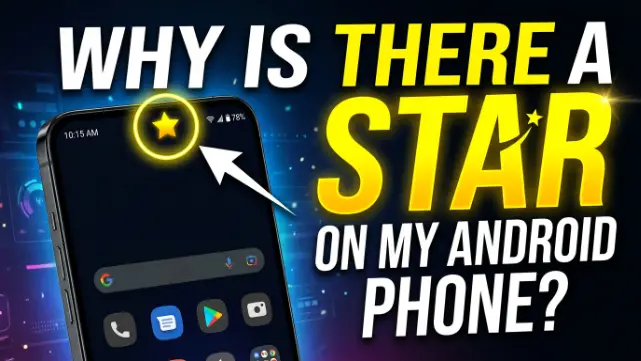
The star icon in your Android status bar means your phone is in Do Not Disturb (DND) Priority mode – a setting that silences most alerts while letting selected contacts, apps, or alarms through. This is not a bug. It is an intentional notification filter, and it is the most common reason the star appears.
That said, “star on Android phone” is not one single thing. There are at least four distinct causes, depending on your Android version and phone brand.
The 4 Reasons a Star Appears on Your Android Status Bar
1. Do Not Disturb Is On (Priority Mode)
This is the most common cause. When your phone is in Priority mode, it shows a star icon in the status bar, meaning you will only receive notifications from contacts added to your favorites or priority list.
The default Android 5.0 Lollipop DND feature is called “Downtime.” During Downtime, you only receive Priority notifications, and you can choose which days and at what times to automatically switch to Priority notifications.
Priority mode lets alarms through. It does not silence everything – that is Total Silence mode, which shows a different icon.
2. Samsung Modes and Routines (Samsung Devices Only)
On Samsung Galaxy phones, the star has a second, separate meaning. A star appears in the status bar when a custom mode is created and turned on in Modes and Routines. You can choose any of the available symbols, and the selected symbol will appear in the status bar when the mode is activated.
So if you set up a “Work” or “Sleep” mode in Samsung’s Modes and Routines app, and assigned it a star symbol, that is what you are seeing. It is not DND at all.
To check: go to Settings > Modes and Routines and see which mode is currently active.
3. A Third-Party App Is Sending a Star Notification
Some apps use a star-shaped icon as their notification symbol. If you see the star in your notification shade (not the status bar icon area), it is from an app.
Pull down from the top of the screen twice to open the full notification panel. The app responsible will be listed directly below the star notification. Tap it to open the app and adjust its notification settings.
4. A Starred Contact Has Triggered a Priority Alert
In Priority Only mode, you can configure who gets through – choices include anyone, starred contacts, any of your contacts, or none. You can also choose whether to let your phone ring if the same person calls again within 15 minutes.
If you starred a contact in the default Contacts app, calls or messages from them may trigger alerts even when DND is active. The star icon you see is the residual indicator of that priority system.
How the Star Icon Has Changed Across Android Versions
This is the part most guides skip. The star’s meaning has shifted as Android evolved. Worth knowing if you use an older phone or recently upgraded.
| Android Version | Star Icon Meaning |
|---|---|
| Android 5.0-5.1 (Lollipop) | Priority mode – the original DND star |
| Android 6.0-8.1 | Priority Only DND – same star, refined settings |
| Android 9.0-13 | DND icon shifted to a minus-in-circle; star less common |
| Android 14-15 | Priority Mode returned as a separate customizable layer |
| Samsung One UI (any version) | Star can mean active custom Mode, independent of DND |
Google’s updates to DND mode in Android 15 introduced new customization options and a refreshed interface. The updated interface includes new icons and the apps section was streamlined to make preferences easier to manage. This level of personalization ensures the phone adapts to user needs rather than forcing adjustment to preset limitations.
Android 15 also brought back something close to the original Priority Mode concept. According to Android Authority, Google’s code shows a Priority Mode tile in Quick Settings alongside DND. Users can create custom modes with fine-tuning options for how apps interact with it, covering people, display, and more.
How to Remove the Star Icon on Android
The fix depends on which of the four causes applies to your phone.
If It’s DND on Stock Android
- Swipe down from the top of your screen to open the notification shade.
- Look for the Do Not Disturb tile (a circle with a minus sign, or a star on older Android).
- Tap it to toggle DND off.
- The star disappears immediately.
Alternatively: go to Settings > Sound > Do Not Disturb and tap “Turn off now.”
If It’s a Samsung Custom Mode
Pull down your notification panel from the top twice to get the full view, then tap the star icon. Once tapped, the icon and label turn into a “Modes” tile that you can tap into to get the Modes and Routines screen, where you can re-enable, add, edit, or delete custom modes.
Or go directly to Settings > Modes and Routines > Modes and tap the active mode to turn it off.
If It’s a Third-Party App
Open the full notification shade, identify the app below the star, long-press the notification, and tap “Turn off notifications” or adjust notification settings for that app under Settings > Apps > [App Name] > Notifications.
How to Customize What the Star (Priority Mode) Allows Through
Getting the star to disappear is one thing. Getting DND to work the way you actually want is another. Most users leave it on defaults and miss half the value.
On phones running Android 6.0 through Android 9.0, Do Not Disturb mode offers three options: Total Silence (nothing gets through), Alarms Only (set alarms can disturb), and Priority Only (alarms get through, plus whatever contacts and apps you designate).
To set which contacts bypass DND on a Pixel or stock Android phone:
- Go to Settings > Sound > Do Not Disturb.
- Tap People to set which calls and messages can interrupt.
- Tap Apps to allow specific app notifications.
- Tap Schedules to automate DND at specific times – during sleep, meetings, or commutes.
Starting in Android 11, you can also highlight specific conversations. In the context of Do Not Disturb, you might not want Facebook Messenger notifications but do want urgent SMS messages to get through. The options include All Conversations, Priority Conversations, and None.
Case Study: One Setting That Stopped a User’s Missed Calls for Months
A student in one of our tech literacy cohorts came to a session confused about missing calls from her university. Her phone showed a star in the status bar she had never noticed. She had turned on DND one night to sleep and never switched it off – Android kept it running.
Her DND was set to “Priority contacts only,” but her university’s number was not saved in her contacts. Result: every call from admissions went straight to voicemail for almost three months.
The fix took 30 seconds. She tapped the star, turned off DND, and then came back to set it up properly – Sleep schedule from 11 PM to 7 AM, with “Anyone” allowed for repeat callers within 15 minutes. She has not missed a call since.
The lesson: the star is not a problem. Leaving it on without configuring it is.
What Other Star-Related Icons Mean on Android
Not every star is about DND. A few look-alikes worth knowing:
- Star inside a circle (Google apps): This marks a message or conversation as “starred” or important inside Gmail, Google Messages, or Google Chat. It is an in-app marker, not a status bar icon.
- Four-point snowflake star (Samsung weather alerts): A four-star snowflake icon on Samsung devices indicates a weather alert for heavy snowfall in your area. Completely separate from DND.
- Star in Google Contacts: Starring a contact flags them as a priority in DND. It does not place a star on your status bar directly.
Why Android Uses a Star (Not a Bell or Moon) for This Feature
Quick bit of context. The star symbol was chosen by Google’s design team for Android 5.0 in 2014 to represent the “priority” concept – the same visual language used in email clients where you star important messages. It matched the “starred contacts” feature in Google Contacts.
Apple went with a moon (crescent) for their Do Not Disturb. Samsung created its own custom mode system. So the same underlying concept looks different depending on which phone is in your hand. On Android, the star stuck through to Android 8.x, then DND got a redesign, and now it is making a partial return in Android 15 and 16.
Android 16 introduced a refreshed Material 3 design with Gemini AI integration. Android 15 currently holds a 17-27% version distribution share, while Android 14 remains near 19-34% of active devices globally.
With 3.9 billion Android users worldwide in 2025, representing an 8% increase from 2024, even a small status bar icon that confuses 10% of users translates to hundreds of millions of people Googling “why is there a star on my Android phone.”
Frequently Asked Questions About the Star on Android Phones
What does the star icon mean on an Android phone?
The star icon on an Android phone’s status bar typically means Do Not Disturb is active in Priority mode. This silences most notifications while allowing alerts from selected contacts, apps, or alarms to get through. On Samsung phones, it can also indicate an active custom Mode created in the Modes and Routines app.
How do I get rid of the star on my Android status bar?
Swipe down from the top of the screen and tap the star or DND icon to turn it off. On Samsung phones, swipe down twice and tap the star icon to access Modes and Routines, then deactivate the active mode. The star disappears as soon as the setting is disabled.
Why did a star suddenly appear on my Android phone?
The most likely cause is that Do Not Disturb was enabled accidentally – either by pressing volume buttons (which can trigger DND on some phones), by a scheduled DND rule activating, or because an app triggered a mode change. Check your notification shade and DND settings to confirm which is active.
Does the star on Android mean someone is monitoring my phone?
No. The star icon is a standard system icon for Do Not Disturb or Priority mode. It has nothing to do with surveillance, monitoring, or third-party access to your device. If you suspect your phone is compromised, that is a separate concern unrelated to the star icon.
What is the difference between the star and the moon icon for Do Not Disturb?
The star is Android’s symbol (used primarily on older Android and Samsung devices). The moon or crescent is Apple iOS’s DND symbol. Some Android phones running newer versions of Android use a circle-with-minus sign instead of the star for DND. The function is the same: silence most notifications.
Can I make DND allow calls from a specific person?
Yes. Go to Settings > Sound > Do Not Disturb > People and add specific contacts whose calls or messages can come through even when DND is active. You can also enable “Repeat callers” so that anyone who calls twice within 15 minutes gets through automatically.
Why does the star appear on my Samsung but not my Pixel?
Samsung’s One UI adds its own layer on top of Android, including the Modes and Routines system with its own star symbol. A stock Android Pixel phone uses a different icon set for DND. If you see a star on a Samsung and no star on a Pixel with the same settings, it is likely a Samsung-specific custom mode causing it, not DND itself.
Key Takeaways
- The star on your Android status bar is almost always Do Not Disturb (Priority mode) or a Samsung custom Mode – not a malfunction.
- Tap the star in your notification shade to turn it off immediately.
- Configuring DND properly (right contacts, right schedule) is more useful than simply turning it off.
- On Samsung phones, check Modes and Routines if the star persists after disabling DND.
- Third-party app notifications can also display as a star – check your full notification panel to identify the source.